Features
Everything you need to manage your property
From the first reservation to full control over occupancy.
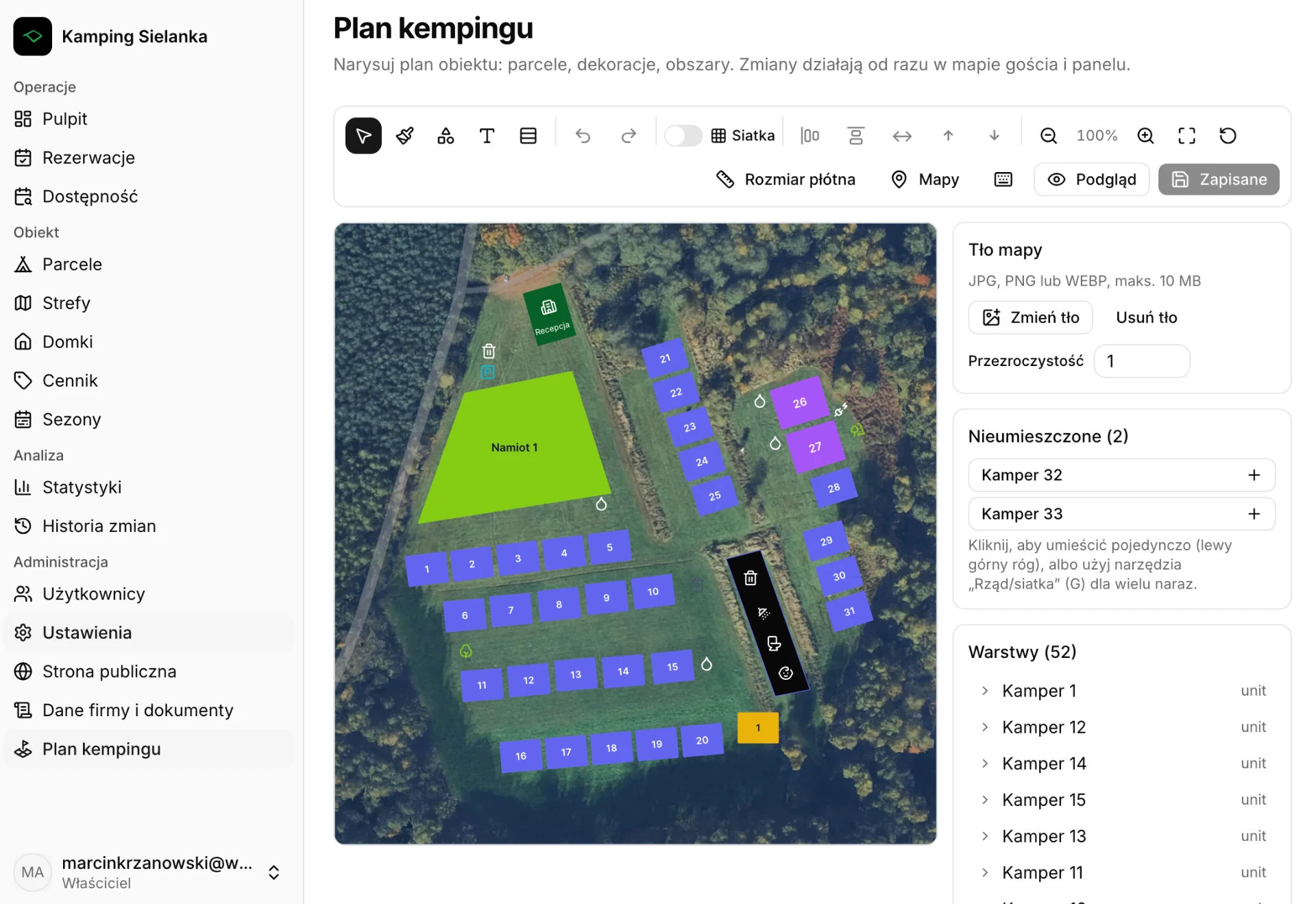
Interactive site map
Guests don't know where they'll actually stay, and reception explains it over the phone.
- Visual site plan with pitches and zones laid out
- Availability visible at a glance
- You build the map yourself, no vendor order needed
- Your own background image (JPG, PNG, PDF) as the plan base
- Facilities: toilets, showers, kitchen, playground, water point, grey water dump, reception, parking
How it works in practice
- 1Upload your background — the site plan as JPG, PNG or PDF.
- 2Place your existing units on it: pitches and zones.
- 3Add facilities such as toilets, kitchen or parking.
- 4Save the plan and check the preview your guests will see.
Pitches and zones
Confusion about what you actually have to rent out.
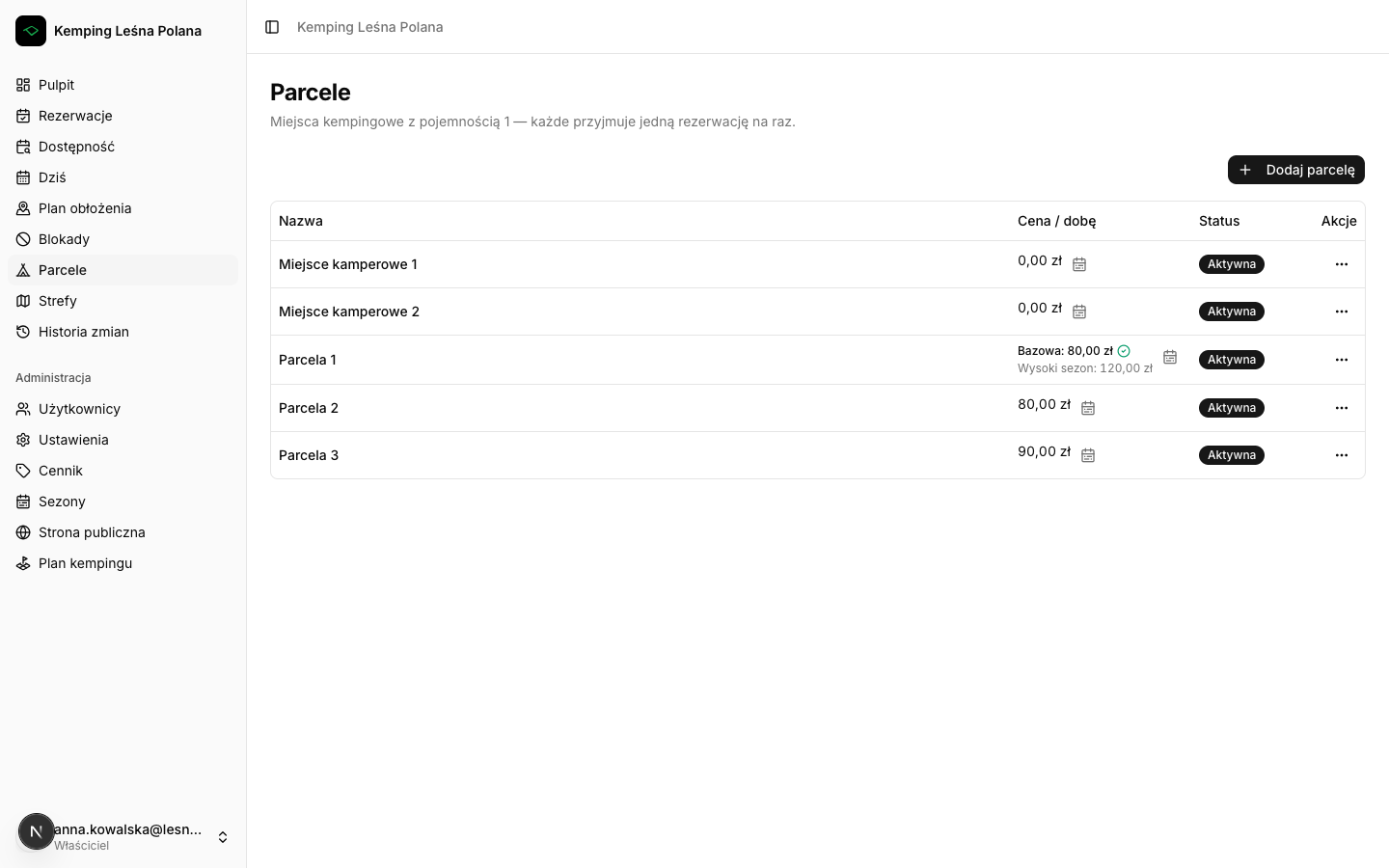
- Pitches — specific numbered spots (one reservation at a time)
- Zones — open fields with capacity (e.g. a meadow for 30 tents)
- Nightly price set separately for each unit
- Deactivate units without deleting their history
How it works in practice
- 1Add a unit and give it a name or number.
- 2Pick the type: a pitch is one spot, a zone has capacity.
- 3Set the nightly price for that unit.
- 4When a unit is out of use, deactivate it — the history stays.
Reservations
Reservations scattered across the phone, Messenger and a notebook.
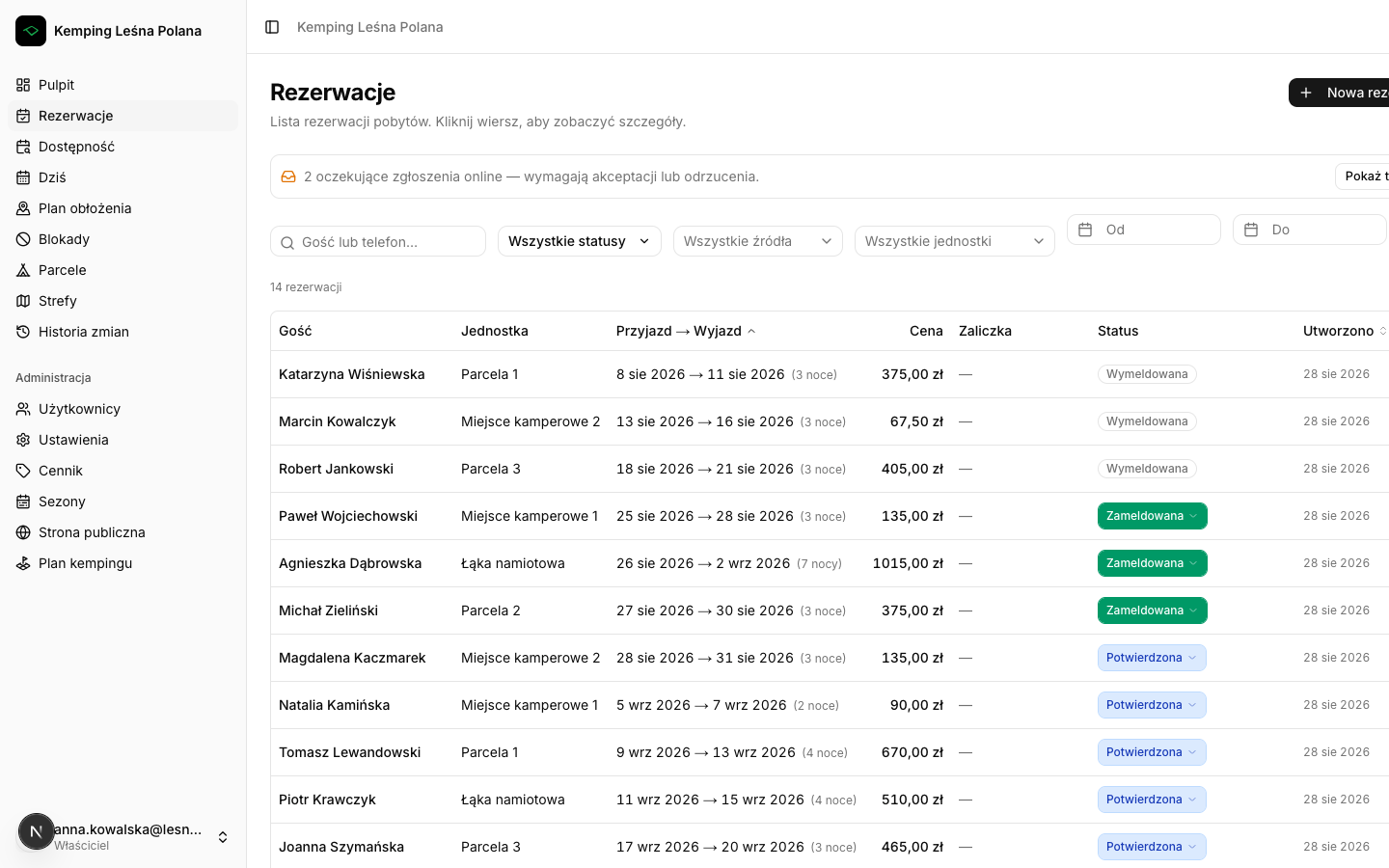
- Reception adds a reservation in seconds
- Price calculated automatically from dates, guests and extras
- Statuses: pending, confirmed, checked in, checked out, cancelled
- The price is frozen at booking time — pricing changes don't affect it
- All guest details in one place
How it works in practice
- 1Pick the unit and the stay dates.
- 2Fill in guest details, number of people and extras.
- 3Check the calculated price before saving.
- 4Move the status along the stay: confirmed, checked in, checked out.
- 5Date corrections happen on the same reservation — no new record.
No double bookings, guaranteed
Two families on one pitch on a Saturday in August.
- Protection built into the database, not the interface
- Works even for two reservations in the same second
- Zones enforce capacity — not a single spot over the limit
- The departure day is immediately free for the next guest
How it works in practice
- 1Every reservation occupies a date range on a specific unit.
- 2The database rejects any record that overlaps an existing one.
- 3On a conflict you see a message and the dates already taken.
- 4Just change the dates or the unit and save again.
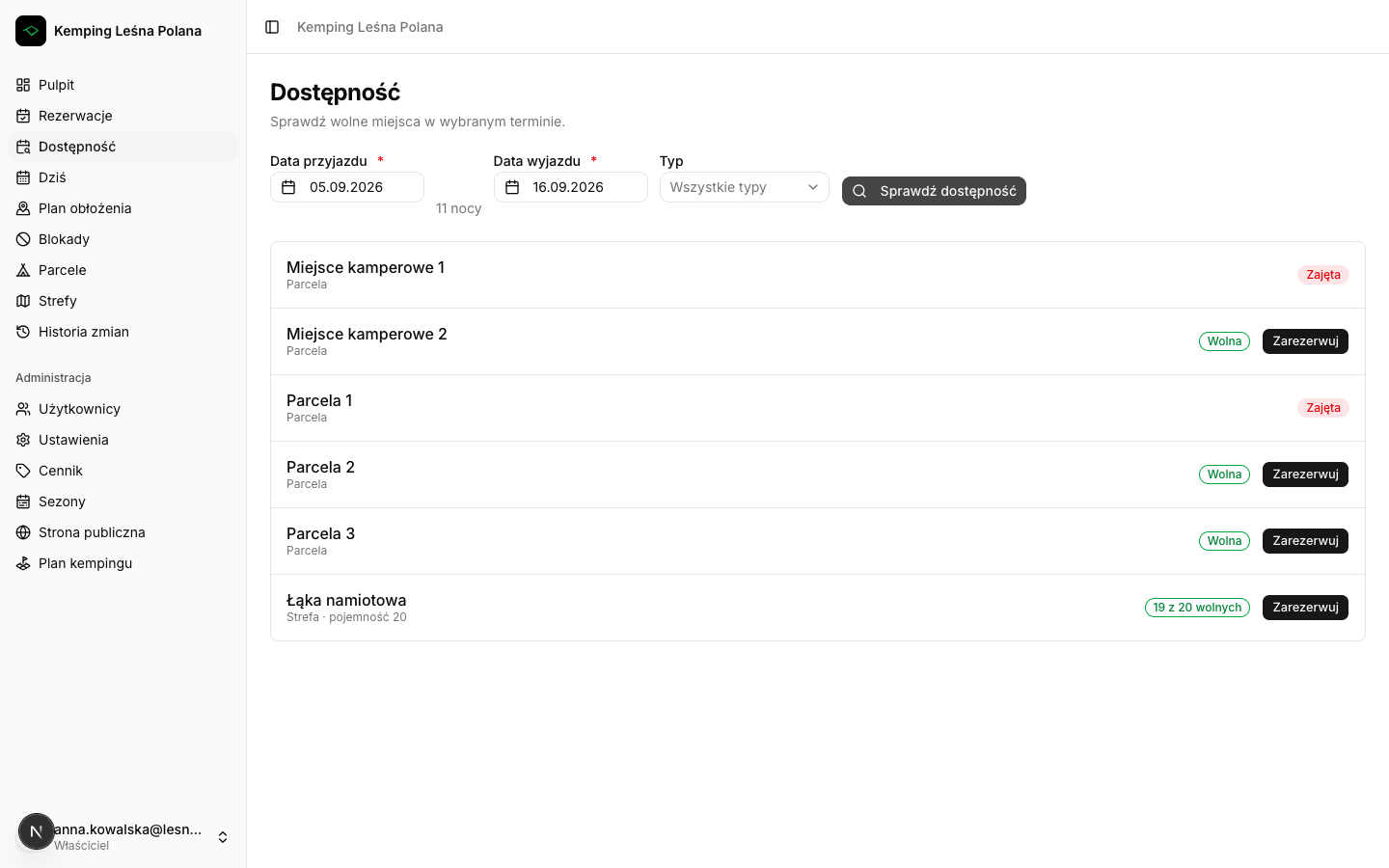
Unit blocks
Renovation, maintenance, a spot used by the owner.
- Block any unit for a chosen date range
- Reason and note
- A blocked unit disappears from availability, including public availability
How it works in practice
- 1Pick the unit and the block's date range.
- 2Add a reason and a note for the team.
- 3Review blocks in the list or on the availability map.
- 4When the work is done, remove the block — the unit is bookable again.
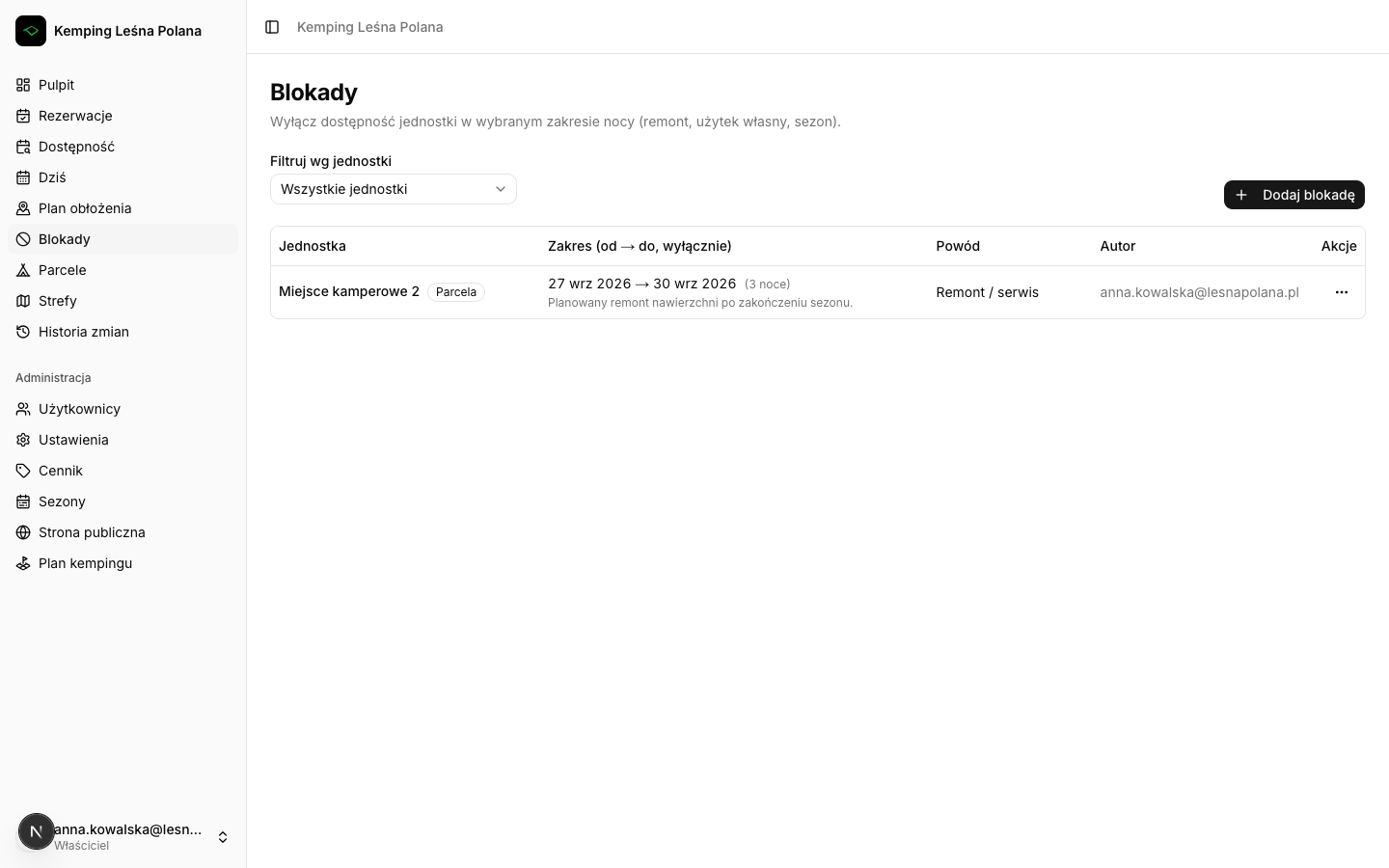
Pricing and extra fees
Doing mental math for a family with a dog and an electricity hookup.
- Base nightly price for every unit
- Fees per adult, child, pet, electricity
- Each fee: per night or one-off
- Simply switch off the fees you don't use
How it works in practice
- 1Set the base nightly price for your units.
- 2Add extra fees and choose how they count: per night or one-off.
- 3Check how the fees change the price of a sample reservation.
- 4Switch off fees you don't apply.
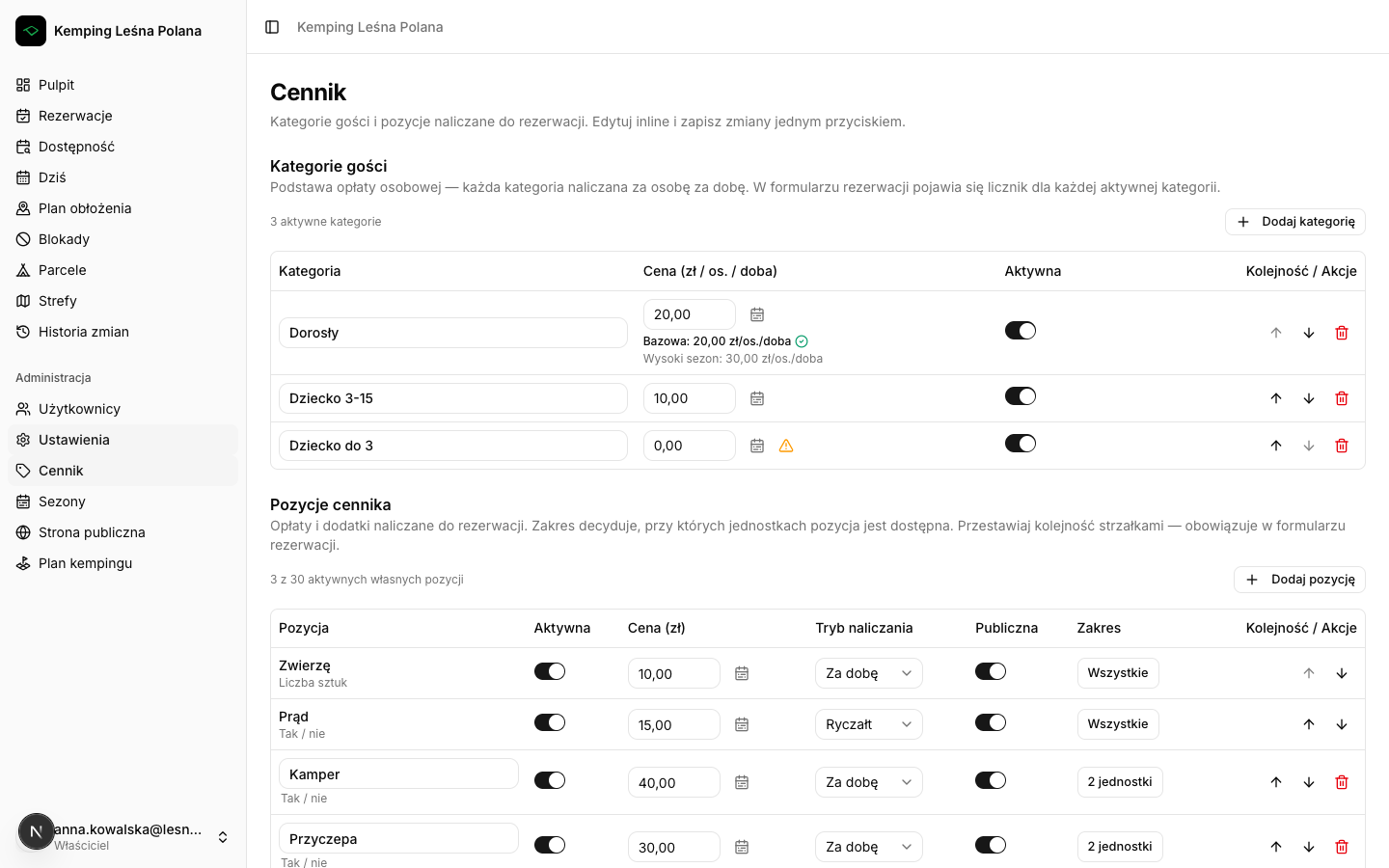
Availability check
"Do you have anything free for the long weekend?" — and searching a notebook.
- Enter the dates, see every free unit
- Zones show the number of free spots, not just free/taken
- The same information the guest sees on the form
How it works in practice
- 1Enter the arrival and departure dates.
- 2Read the list of free pitches and the spots left in zones.
- 3Go straight from a result to creating the reservation.
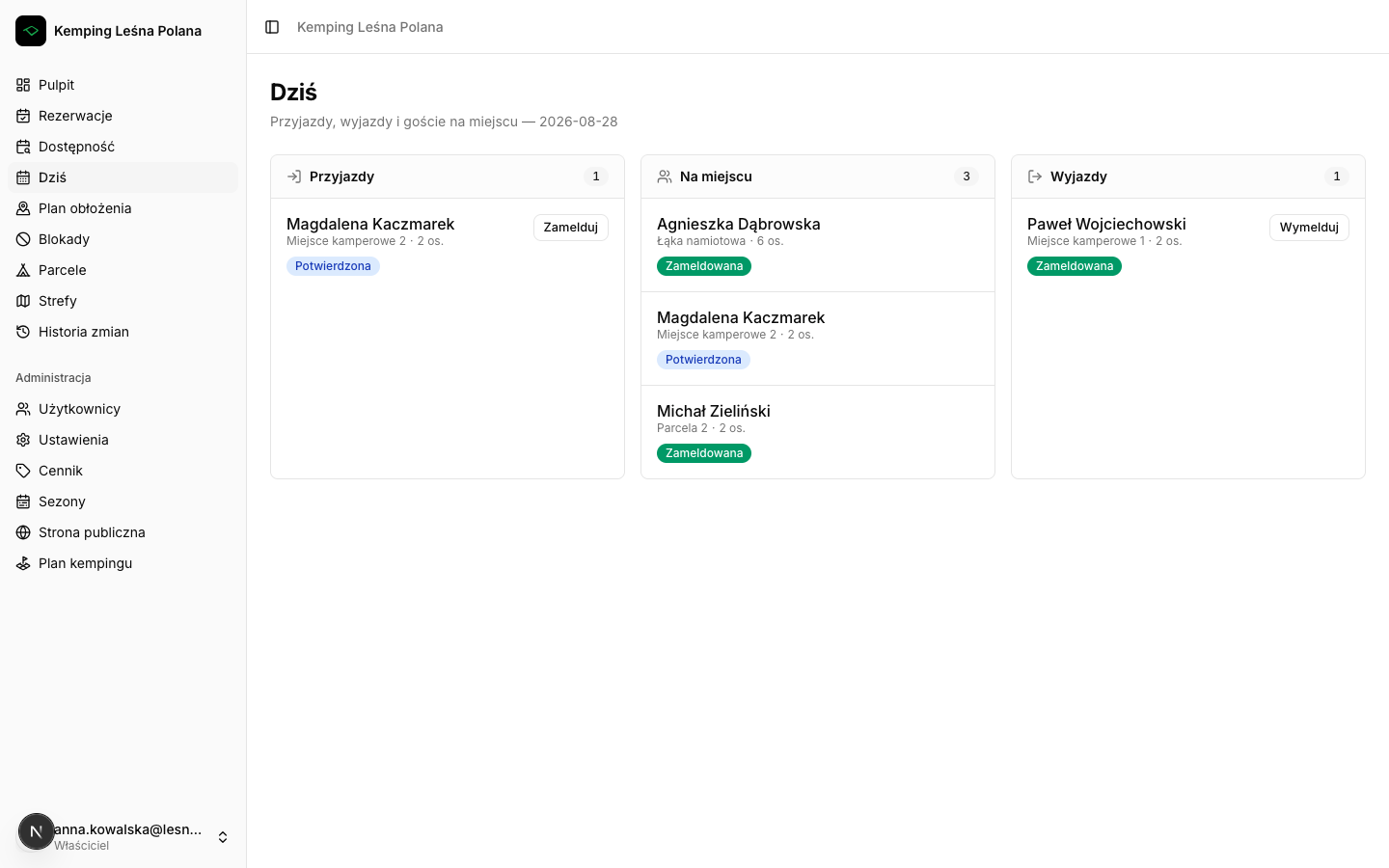
"Today" view
The morning question: who arrives today, who leaves.
- Arrivals, departures and guests on site in one view
- The starting point of the day for reception
How it works in practice
- 1Open the daily view — arrivals, departures and ongoing stays.
- 2Open a reservation for the guest's details.
- 3Mark a check-in or check-out in one click.
Online guest reservations
After-hours phone calls and reservations that slip away.
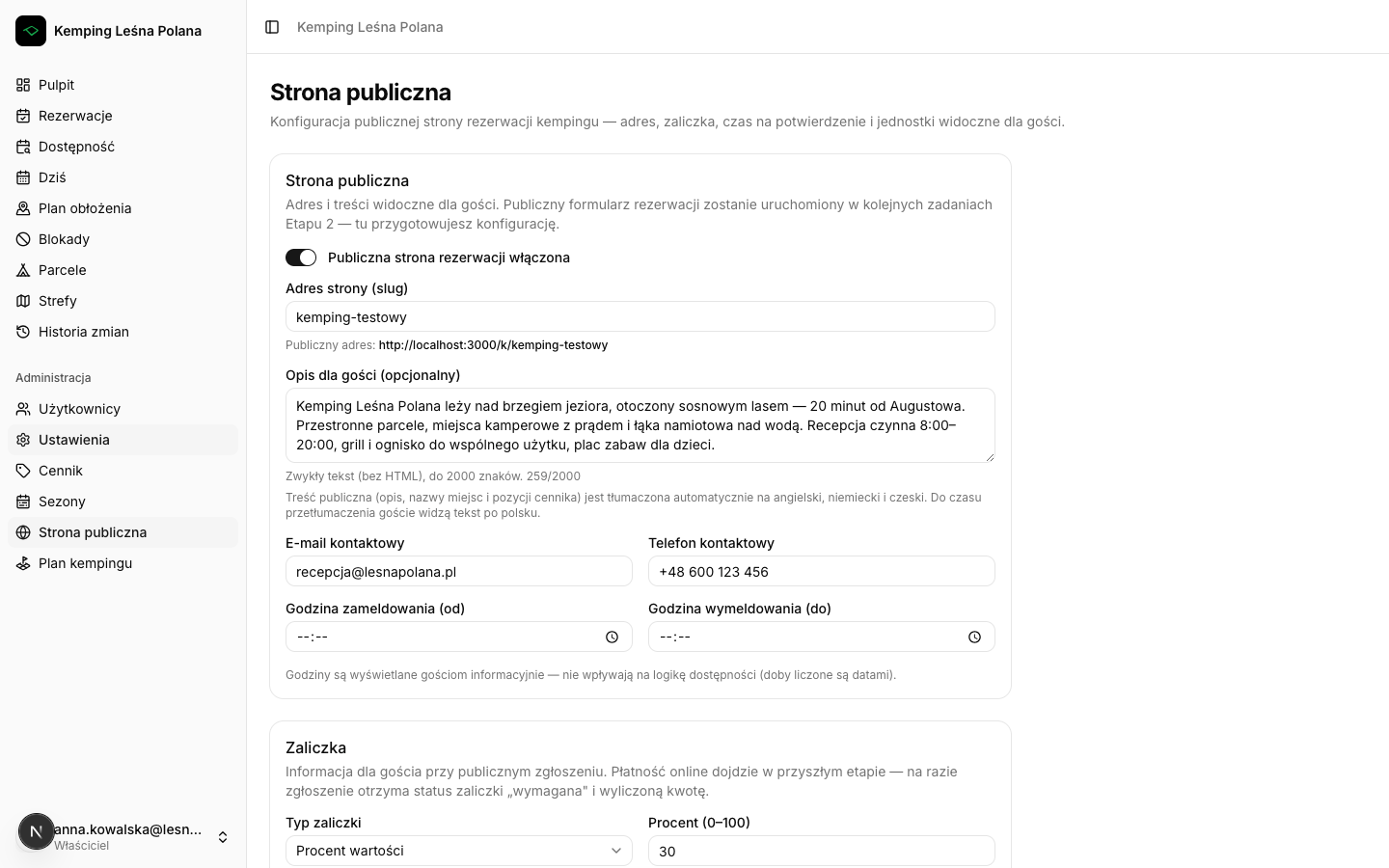
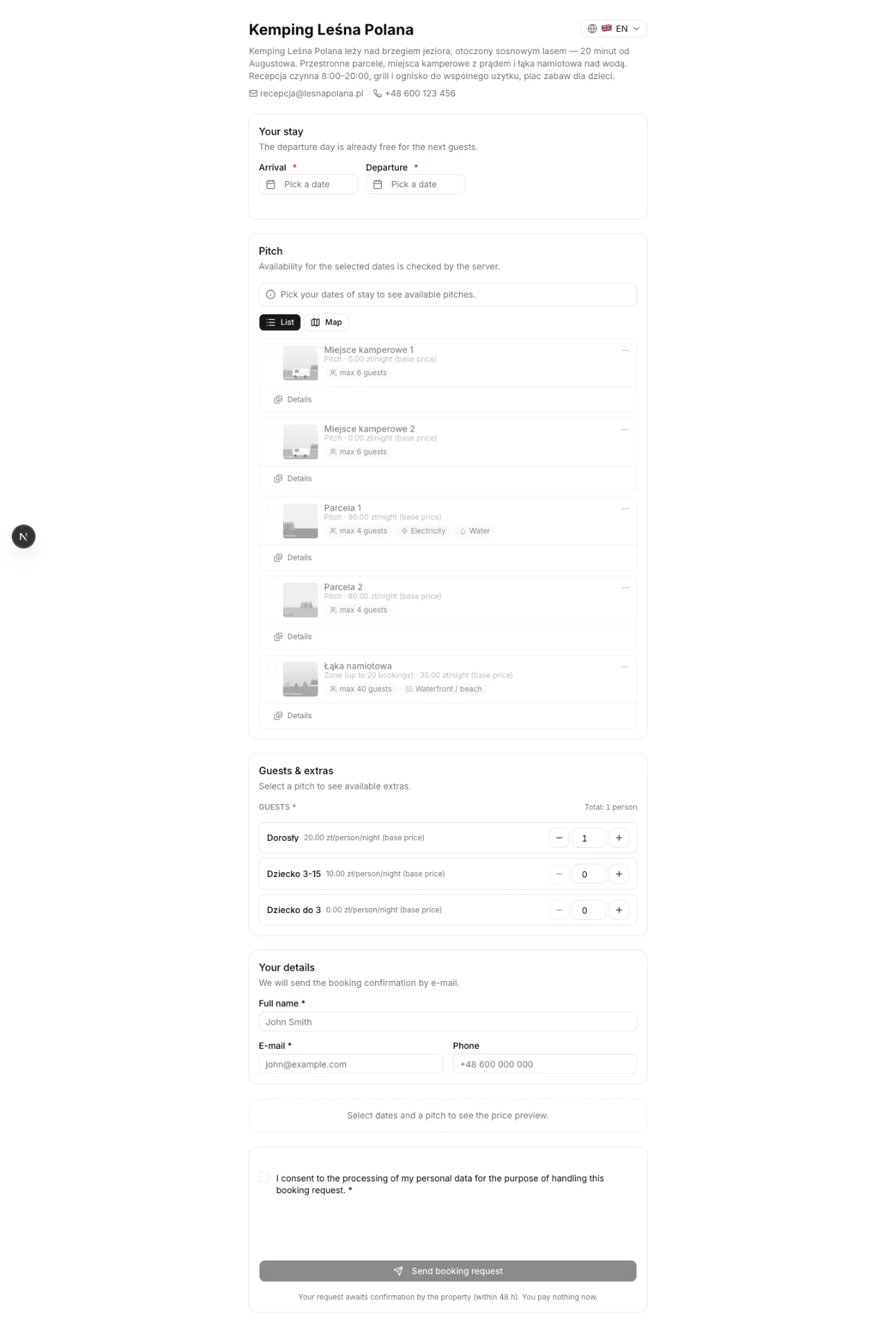
- A public reservation form for your property
- Guests only see the units you publish
- A request holds the unit and waits for your approval
- Unconfirmed requests expire and release the unit
- Protection against spam and bots
How it works in practice
- 1Turn on the property's public reservation form.
- 2Select the units that should be visible to guests.
- 3A new request appears as pending and holds the dates.
- 4Approve or decline it — the guest gets an email.
Deposits
Reservations without cover and guests who never arrive.
- Deposit as a percentage or a fixed amount
- The guest is informed at booking time
- Mark the payment in the system
How it works in practice
- 1Set the deposit rule: a percentage of the price or a fixed amount.
- 2The guest sees the required deposit while booking.
- 3When the transfer arrives, mark it as paid on the reservation.
Email notifications
Confirming every reservation by hand.
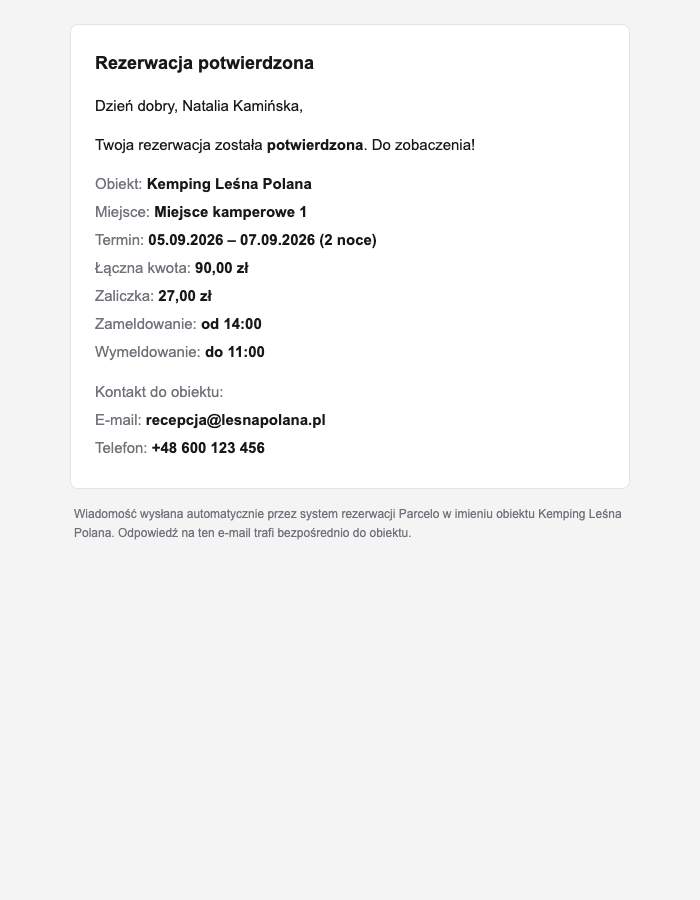
- Automatic acknowledgement of a request
- Confirmation or rejection of the reservation
- Messages carry your property's name and details
How it works in practice
- 1The guest gets an acknowledgement right after sending a request.
- 2After your decision, a confirmation or rejection is sent.
- 3Messages include your property's name and contact details — you fill these in settings.
Users and roles
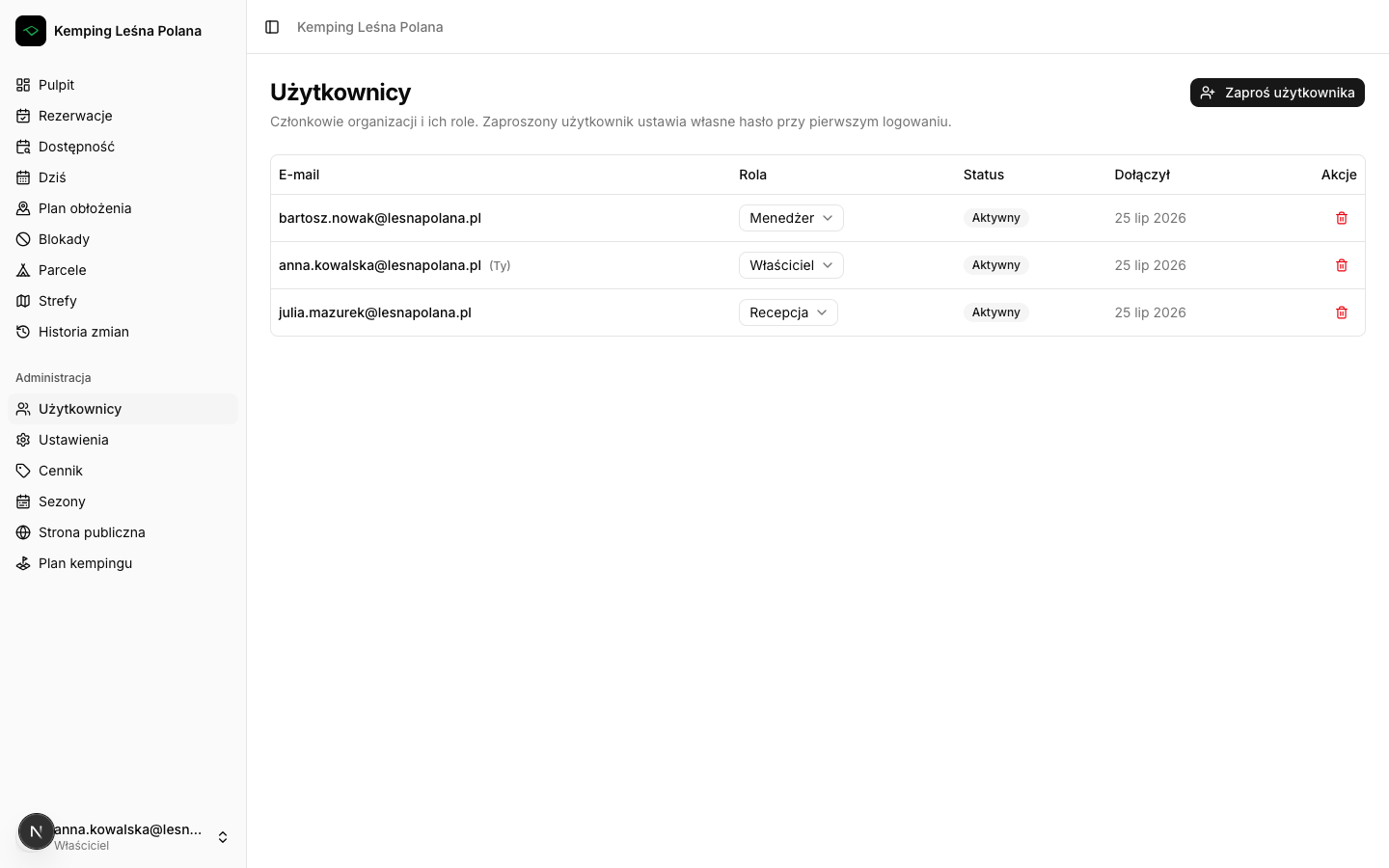
A seasonal employee shouldn't have access to everything.
- Owner — full access
- Manager — property and reservation management
- Reception — guest handling without settings or pricing
- Limits enforced by the system, not just hidden in the menu
How it works in practice
- 1Add a user by their email address.
- 2Pick a role: owner, manager or reception.
- 3Permissions apply immediately — also outside the interface.
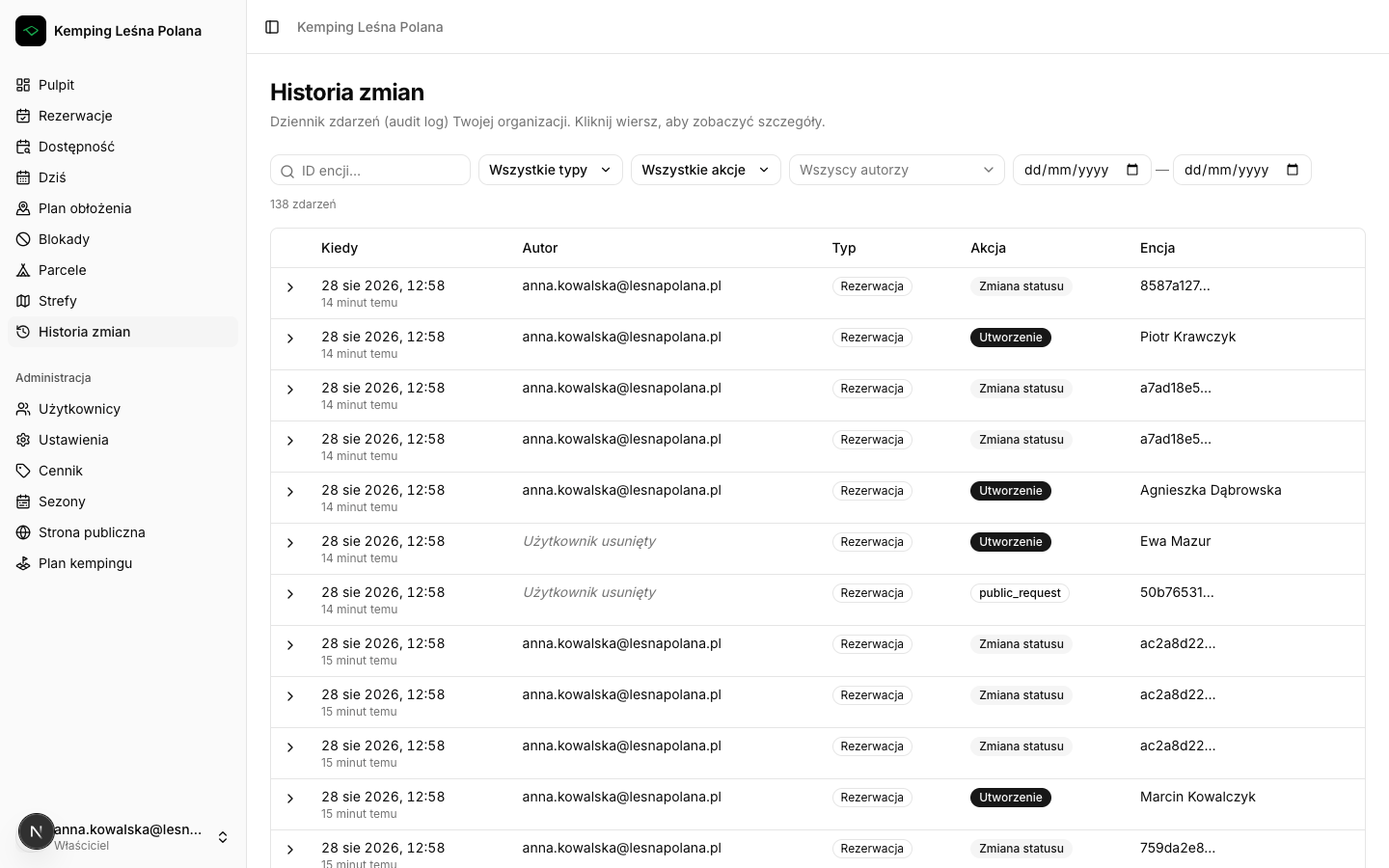
Change history
"Who cancelled this reservation?"
- Every significant action recorded: who, what, when
- Pricing, status, block and reservation changes
- History cannot be edited or deleted
How it works in practice
- 1Open the property's change history.
- 2Filter entries by action type or user.
- 3Open an entry to see the details of the change.
Multilingual content
Guests from Germany and Czechia on a Polish page.
- Automatic translation of property descriptions
- Guests read the content in their own language
How it works in practice
- 1Write the property and unit descriptions in your language.
- 2The translation is generated automatically from that content.
- 3The guest sees the description in the language they use.
Data security and privacy
Guest data is a responsibility, not just a convenience.
- Full data isolation between properties
- Not even a Parcelo administrator sees your reservations or guests
- Support cannot log into your account
- GDPR compliance on the public form
How it works in practice
- 1Each property's data is separated at the database level.
- 2Only users added to your property have access.
- 3The public form collects the consents GDPR requires.
Roadmap
What we're working on
- Occupancy stats and reports
- Online payments
- Cabin rentals with a cleaning window
- Extended unit attributes and photos
We build Parcelo based on feedback from the properties that use it.